Once you've completed the desired ABI queries/functions, you'll want to manage the responses/results accordingly. This section will walk you through how to access these messages/responses as well as printing and sending these messages.
The SmartBorder ABI message browser allows you to view and manage all of your company’s ABI messages. This screen is accessible from the main screen of the many other SmartBorder modules (ex. Transaction Screen), as well as through the ABI menu.
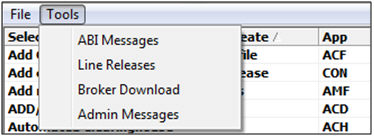
Click on the Tools menu and select ABI Messages
This will open the ABI message browser
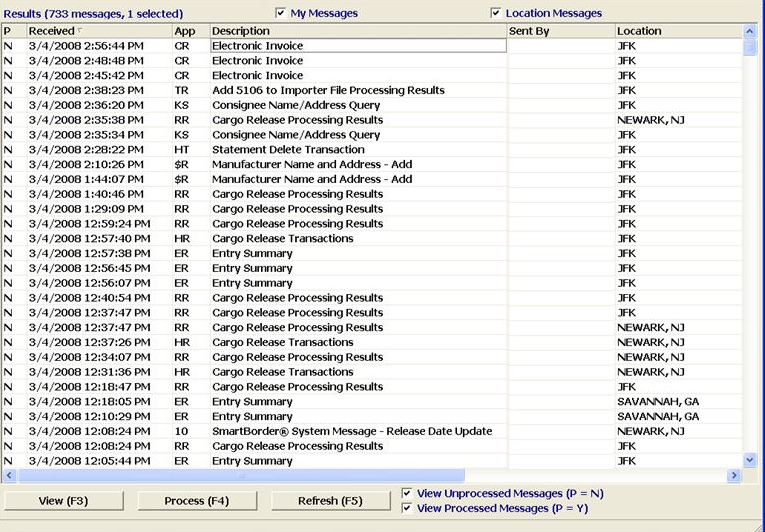
To view a message, double click or click the View button when the message is highlighted
Click Process to process the selected ABI message. Once marked as processed, this message will only show if "View Processed" is checked
Users can limit the listing of these ABI messages by selecting/de-selecting the following boxes:
|
Command Button |
Description |
|
My Messages |
When checked, your ABI messages will display. |
|
Location Messages |
When checked, all ABI messages from your location will display. |
|
View Unprocessed Messages |
When checked, all unprocessed ABI messages will display. |
|
View Processed Messages |
When checked, all processed ABI messages will display. |
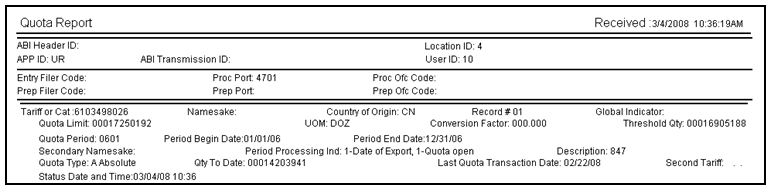
Below is an example of an ABI message in SmartBorder (Quota report):
To print an ABI message, you must first open the desired ABI message

Click the  button to print the selected ABI message
Click the  button if you'd like to send an electronic copy (.pdf) via email
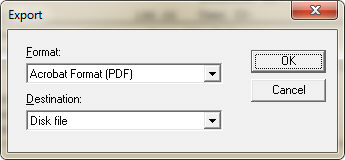
Choose the desired format and click OK
Select the desired destination for the file and it will save to your computer
This can then be attached to an email or saved for your records
Print multiple ABI APP ID messages in a batch
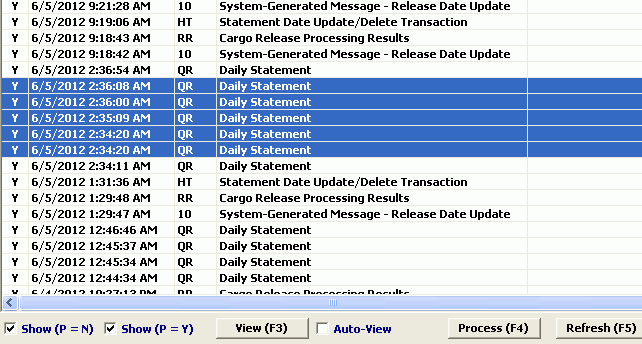
For companies that have multiple daily statements users will now be able to highlight the batch of statements (all items with the same APP ID) and print all at one time
Only available for ABI APP IDs QR, MS, and QS type (Daily statements and Automated Clearinghouse)
Highlight the APP IDs in the ABI message browser
Click view button
Click print icon from the report viewer screen