
This option allows managers to add and edit locations for transmissions in SmartBorder. This menu is also used to set ports for RLF, controlling statement, and branch features. You will want to ensure that your customs representative has "switched on" for any new ports, before transmitting remote entries for that port.
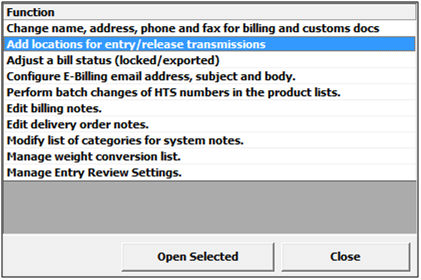
Click on Add locations for entry/release transmissions
This will open the Location Management screen
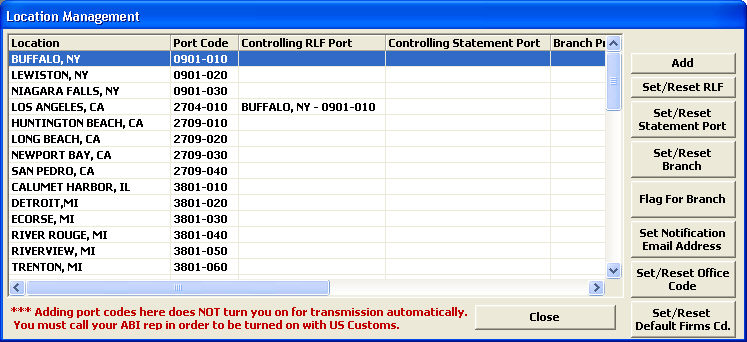
Click Add to add a new location for entry/release transmissions.
You can also edit existing records by clicking on the appropriate button:
|
Button |
Description |
|
Set/Reset RLF |
Click to set the controlling RLF port for the selected port. This will open the Set RLF screen, where you can click the ellipsis to choose the RLF port. |
|
Set/Reset Statement Port |
Click to set the controlling statement port for the selected port. This will open the Set Statement Port screen, where you can click the ellipsis to choose the statement port. |
|
Set/Reset Branch |
Click to select the branch profile to be associated with this port. This will open the Locations Branch screen, where you can click the ellipsis to choose the branch profile. (Branches must be created as a profile in the profiles module) |
|
Flag for Branch |
Click to flag this port as a branch. This will activate the branch feature, which can be managed through the branch profile and the user profile sections. |
|
Set Notification Email Address |
Click to set a notification email address for the selected port. This email will receive notifications associated with the selected port. |
|
Set/Reset Office Code |
Click to set the office code for the selected port.
|
|
Set/Reset Default Firms Code |
Click to select a default FIRMS code for each port. This will auto-fill in each entry based on the selected port. |
Clicking Add will open the Add Location screen:

Enter the Port Code that you would like to add as an entry/release location. If you are editing an existing port, this will display the port code and port name for the selected location record.
Then enter/choose the appropriate location information as described below:
|
Field/Button |
Description |
|
Home RLF Location |
Click the ellipsis to choose the home port location for RLF transmissions in this port. This will display the pick-list of all available ports that can be chosen as the home port for RLF transmissions. |
|
Home Statement Location |
Click the ellipsis to choose the home statement location for entries in this port. This will display the pick-list of all available ports that can be chosen as the home statement port. This cannot be used with RLF. |
|
Assign Permission to Existing Users |
Check this box to give all existing users permission to send release/entry transmissions for this new location. If this is not checked, users must be given permission individually through the broker profile. |
|
Location Notification Email Address |
Reserved for future use. |
Click OK to save this location and return you to the locations screen
Cancel will cancel and return to the locations screen without saving.